Optional Feature: Screen Sharing
■ Sharing from Function Button
The Sharing of an Application
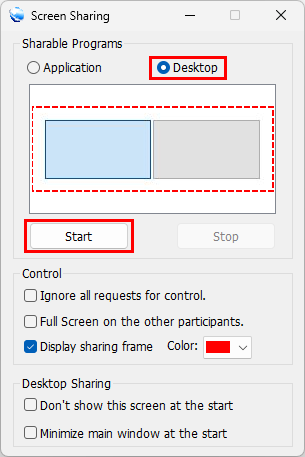
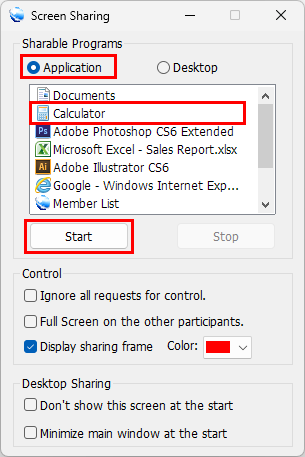
- Select an already running application at the sharing start-up window and click the "Start" button to start sharing.
<The start-up window of Screen Sharing>
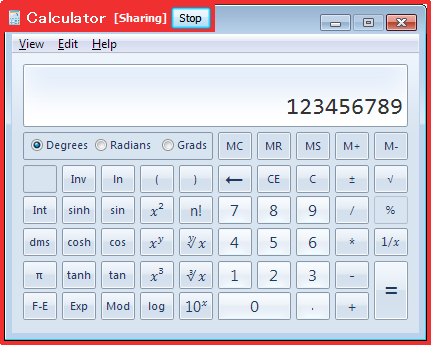
<The screen of user launched Screen Sharing>
| • |
Box the sharing window with frame to indicate which application is shared.
(When multiple same applications are running, all windows of them may be displayed.) |
| • |
Click "Stop" to stop Screen Sharing. |
| • |
The "Stop" button becomes hidden in 5 seconds. To display the "Stop" button again, show the hiding part with a mouse. |
| • |
When the sharing application becomes minimized, the "Stop" button is displayed in the lower left of your desktop. |
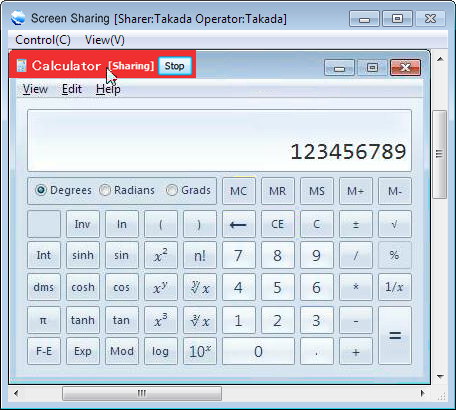
<The shared application as seen in the screen of a participant>
| • |
When Screen Sharing is started, the sharing window of the application is displayed. |
| • |
Displaying/Hiding the "Stop" button depends on the setting of the sharer. |
| • |
The "Stop" button can be operated when you gain operation control. |
[When the sharing window is overlapped by another window]
| • |
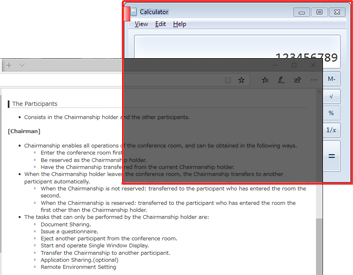
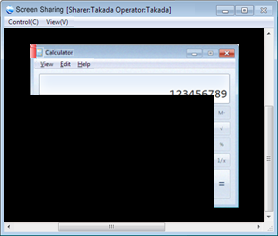
When the sharing window is overlapped by another window, the overlapped part is displayed in black. |
 |
 |
| Screen of user launched Screen Sharing |
Screen of other participants |
The Sharing of a Desktop
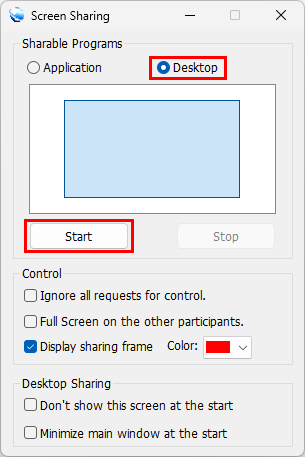
- Select "Desktop" in the sharing startup window and click the "Start" button to begin sharing.
<The start-up window of Desktop Sharing>
<Using Multiple Display>
| ・ |
You can share other than main monitor on your PC settings. |
| ・ |
Select the monitor to share from the monitor layout and click "Start". |
| ・ |
To share other than main monitor, you need to set the same display scaling(%) among all of your monitors(If the participant who has started the Screen Sharing changes the display scaling, please restart PC). |
| ・ |
Sharing an application is not support multiple display. |
<The screen of user launched desktop sharing>
| • |
Box the desktop with frame to indicate the entire desktop is shared. |
| • |
Click "Stop" to stop desktop sharing. |
| • |
The "Stop" button becomes hidden in 5 seconds. To display the "Stop" button again, show the hiding part with a mouse. |
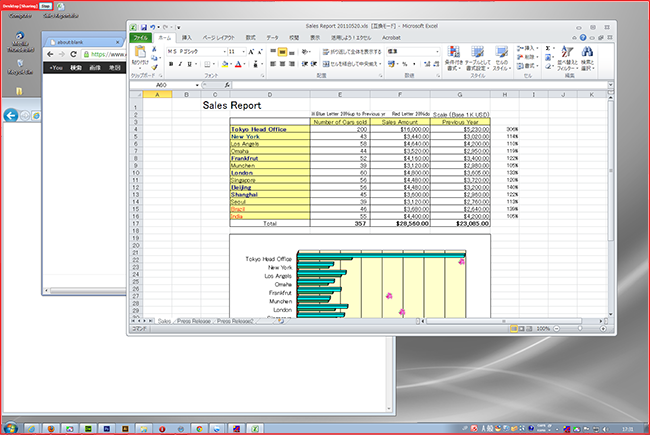
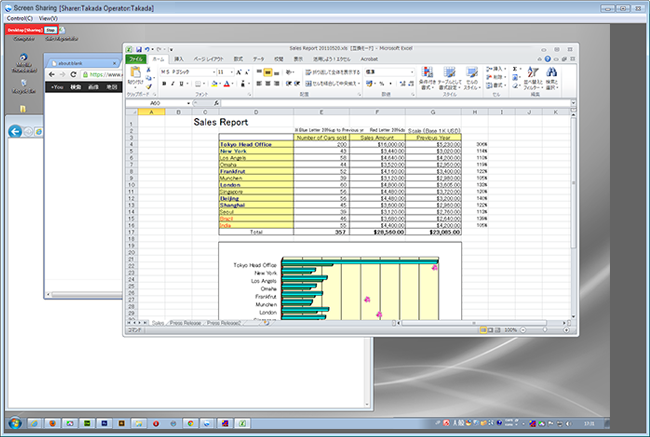
<The shared application as seen in the screen of a participant>
| • |
When Screen Sharing is started, the sharing window of the desktop is displayed. |
| • |
Displaying/Hiding the "Stop" button depends on the setting of the sharer. |
| • |
The "Stop" button can be operated when you gain operation control. |
Terminate/Stop Sharing
- Terminate sharing
- The user who has control clicks "X" button in the top right of the start-up window of Screen Sharing.
- Stop sharing
- The user who has control clicks "Stop" button of the start-up window of Screen Sharing.
- The user who has control clicks "Stop" button in the sharing window.
- Terminate application which is being shared.
 Page Top